How do I use Shred on iOS? Segui

Shred lets you instantly erase data a site might have stored on your device and allows you delete data for a specific site with a single tap. The Auto Shred feature for iOS works like the “Forget me when I close this site” feature on Desktop and Android.
Shred data now
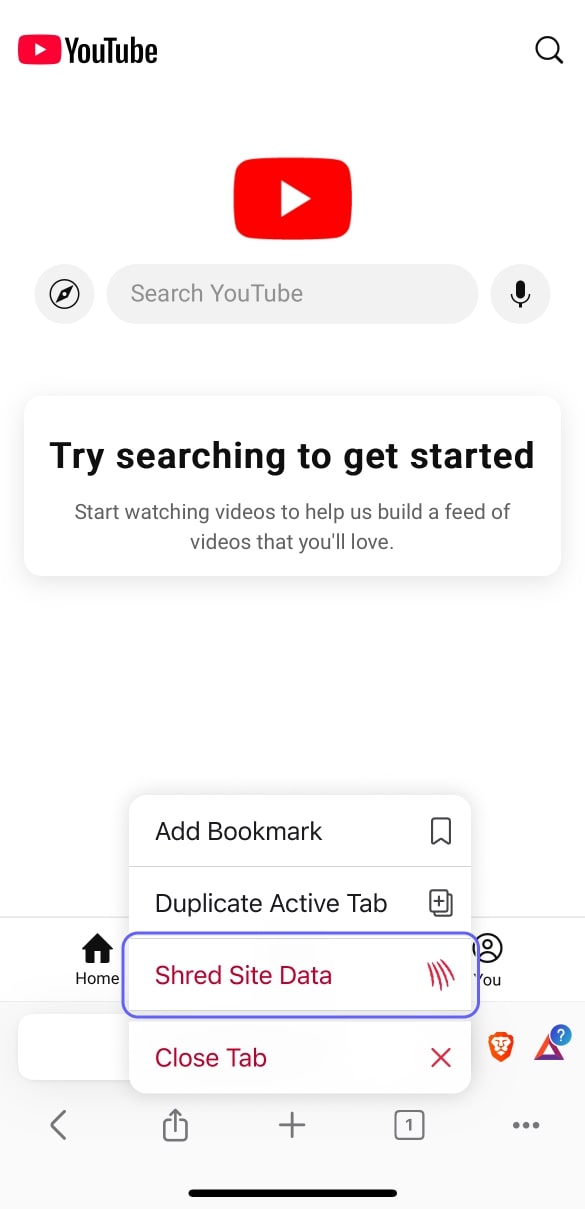
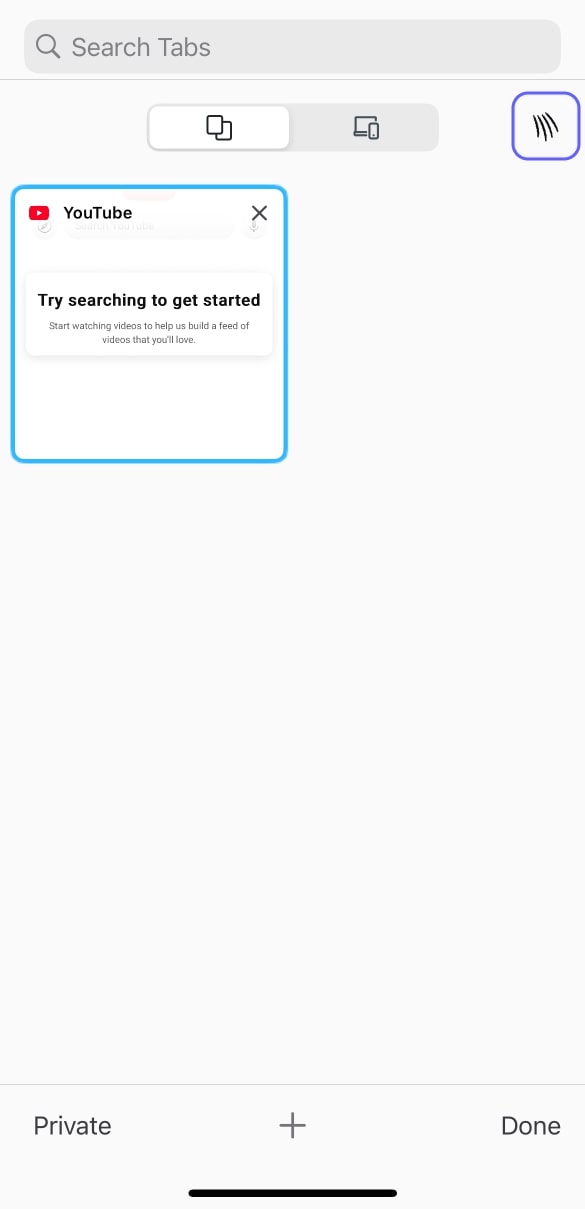
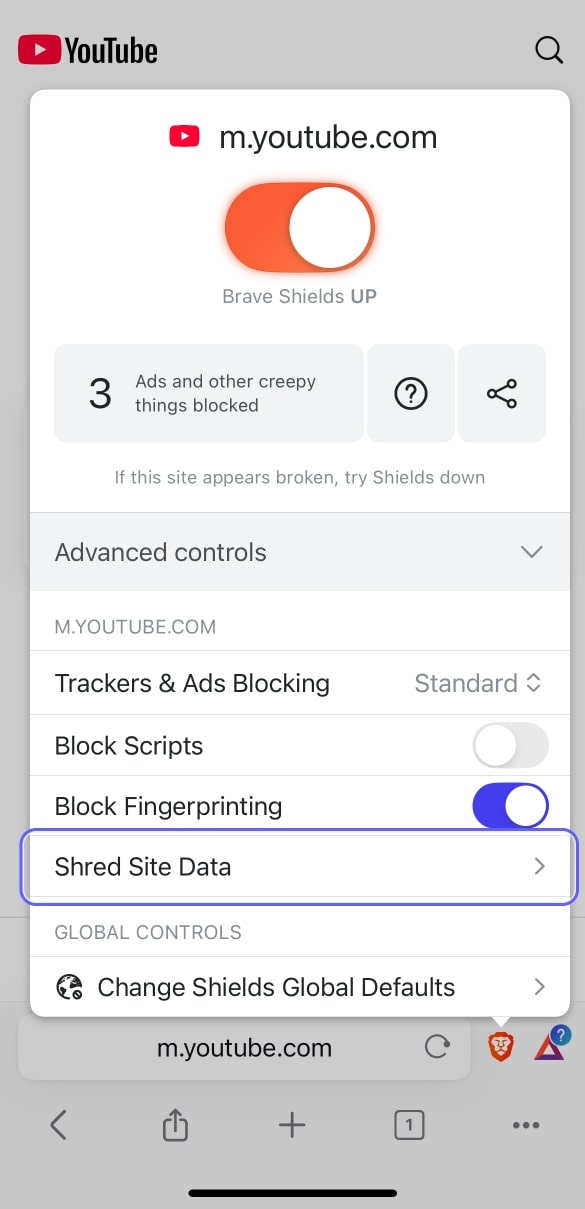
You can immediately Shred a site in three different ways:
- Long-press the tabs button
- Tap the Shred button in the tabs tray
- Select the new Shred option in Shields
Shred works on a per-site basis, since that is the privacy boundary for cookies and storage. When you Shred a site, all tabs open to that site are closed, and locally stored data for that site is erased.
Automatically shred
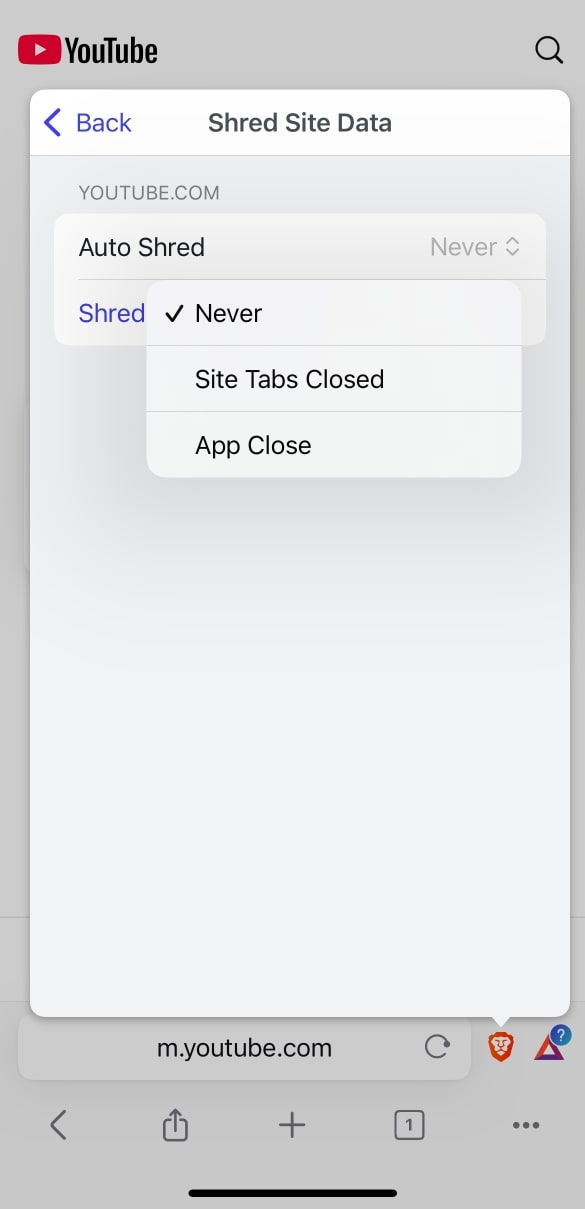
Auto Shred lets you automatically delete data for specific sites, so you don’t have to remember to clear data from specific sites. To do so:
- Open Shields.
- Tap Advanced Controls.
- Tap Shred Site Data.
You can configure Auto Shred to happen when all tabs for a site are closed, or on browser restart. Auto Shredding on Site Tabs Closed means that whenever you close the last tab for a site, Brave will automatically Shred that site’s data.
You can also set Auto Shred to happen for all sites:
- Open Settings.
- Tap Shields & Privacy.
- Tap Auto Shred.
What data does Shred delete?
Shredding deletes both data explicitly stored by the site (e.g. cookies and local storage) and implicit data (e.g. network-related caches). To make sure Shred clears as much data as possible, Shred will also clear local data stored using so-called private WebKit APIs.